 Wasi's Log
My desk setup used to look tidy, but working with both a Mac mini M4 and a Linux laptop turned it into a daily annoyance. Each device had its own keyboard and trackpad, and I constantly found myself reaching back and forth, adjusting to different layouts and shortcuts. It wasn’t just inconvenient; it broke my focus whenever I had to switch machines.
I wanted something simple: one keyboard and one mouse controlling both systems, as if they were just two monitors connected to the same computer. I didn’t want a bulky KVM switch cluttering the desk, and I definitely didn’t want to deal with the unreliability of Bluetooth pairing between multiple devices.
That’s when I came across Deskflow. It promised exactly what I was looking for: a seamless way to share my Mac keyboard and mouse with my Linux laptop, without extra hardware. At first, I was skeptical, since I had already been burned by alternatives. But once I tried Deskflow, it felt like a genuine turning point in how I work across my machines.
Discovering deskflow
Before landing on Deskflow, I did my usual round of research. The obvious names came up first: Synergy, Barrier, and Input Leap. These tools have been around for years, and plenty of engineers still use them to share a keyboard and mouse across machines.
But the more I dug into community feedback, the less confident I felt about relying on them. Synergy has become somewhat commercial and bloated, and I didn’t want to deal with paywalls for features that should feel basic. Barrier was once a popular fork, but it hasn’t seen active development in a long time, which left me concerned about macOS compatibility. Input Leap looked promising, but several reports mentioned quirks on newer macOS versions and occasional lag spikes when moving the cursor across devices.
While digging through GitHub, I came across Deskflow. It wasn’t on my radar before, but the project felt alive, with recent commits and people actively sharing their experiences. Out of curiosity more than anything, I decided to give it a try and see if it would work for my setup.
My Desk Setup
On my desk sits a Mac mini M4 connected to an external monitor, alongside a Linux laptop running Ubuntu.
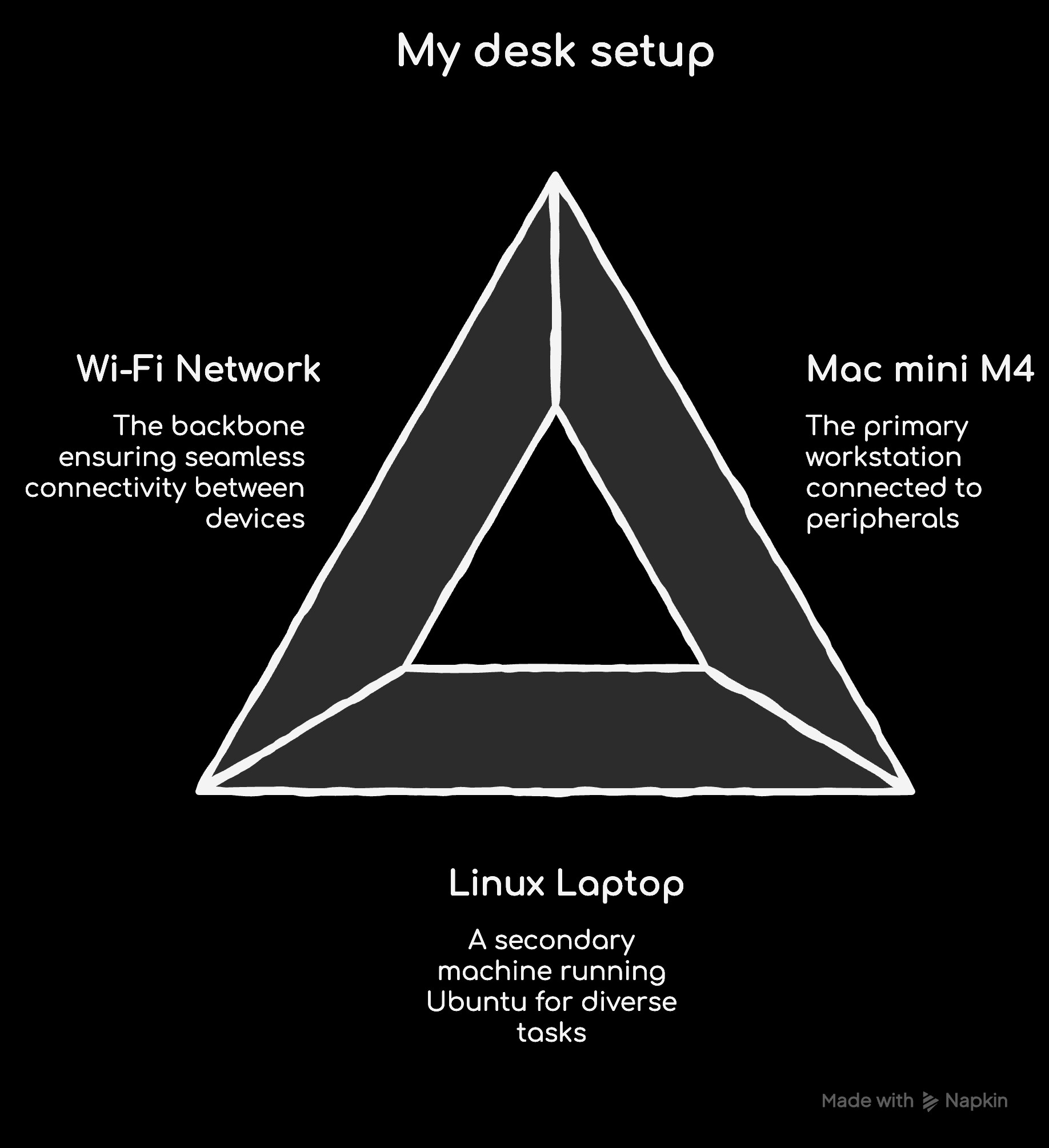
Both devices are on the same Wi-Fi network, which makes communication straightforward. Since my keyboard and mouse are physically attached to the Mac mini, I decided to make it the server, with the Linux laptop acting as the client.
Installing Deskflow
Getting Deskflow up and running was surprisingly straightforward. On macOS, I installed it via Homebrew with a single command:
brew install deskflow
On my Linux laptop running Ubuntu, I installed Deskflow using Flatpak, which kept things clean and isolated from the system packages. The commands were:
flatpak install flathub com.deskflow.Deskflow
flatpak run com.deskflow.Deskflow
I also referred to the official Deskflow GitHub releases to verify versions and check for updates.
Installation went smoother than I expected! No dependency headaches or system quirks, giving me confidence to move on to configuration.
Configuring Deskflow
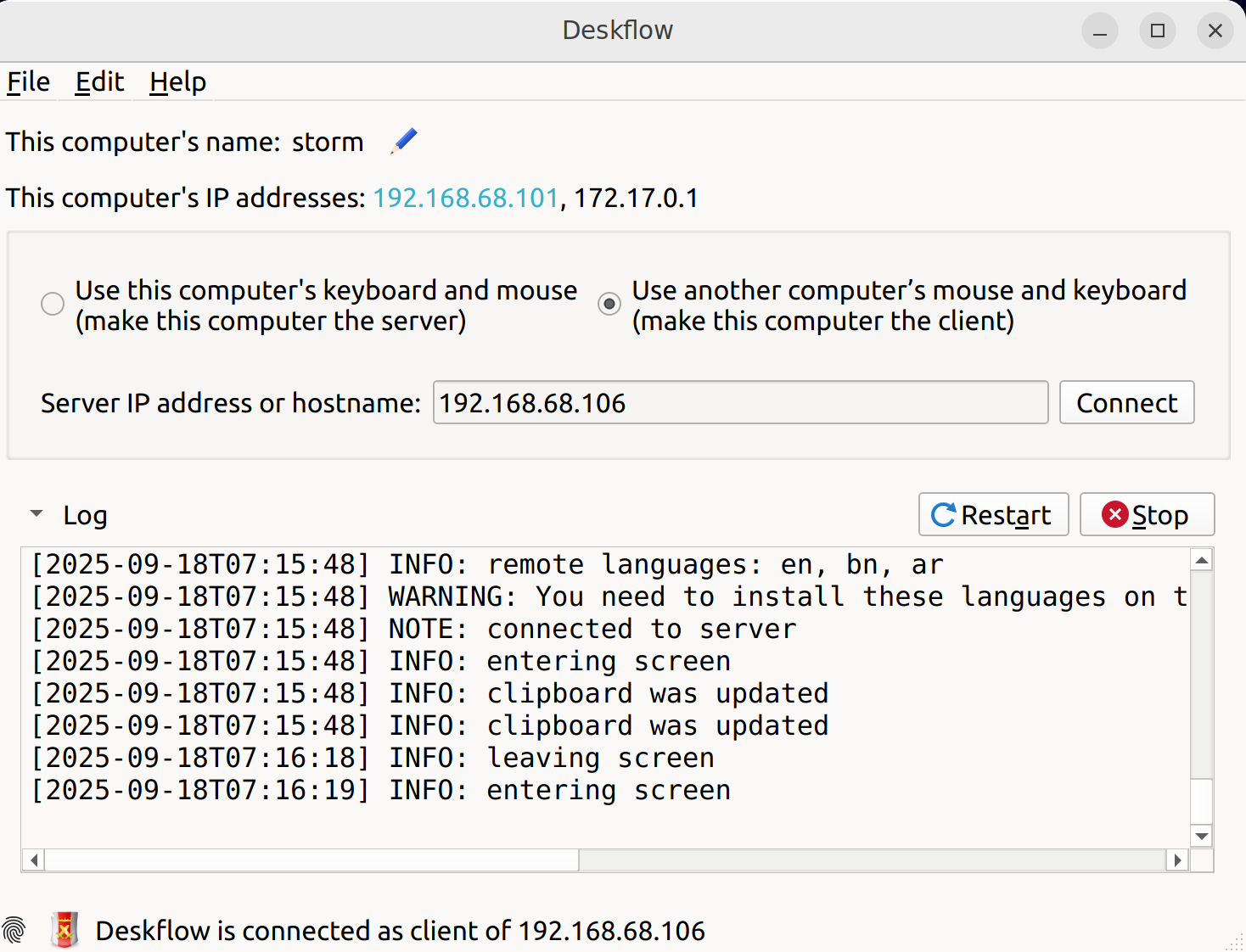
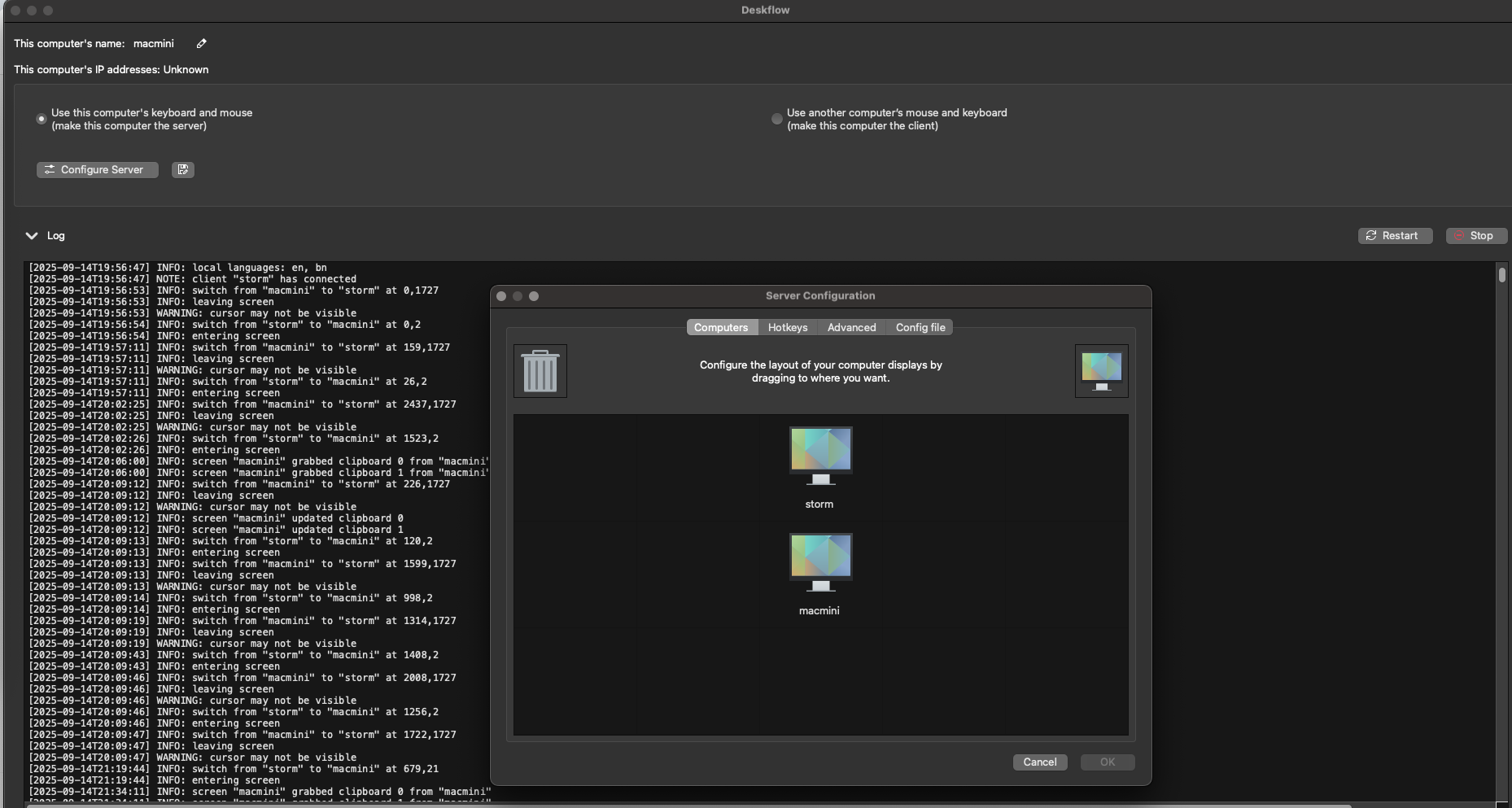
On the Mac, I launched Deskflow and set it to server mode. I noted the local IP assigned to my Mac, which would be needed for the client connection. On the Linux side, I opened Deskflow and selected client mode, entering the Mac mini’s IP to establish the link.
I arranged the virtual screens to match my physical setup. The Linux laptop sits to the right of the Mac monitor, so I positioned its screen logically in Deskflow’s configuration. This allowed the mouse to flow naturally from one display to the other.
Living With Deskflow
After a week of use, Deskflow has become a natural part of my workflow. Moving between macOS and Linux feels almost invisible. The mouse glides across screens with minimal latency, and keyboard input remains responsive even during heavier tasks like coding or running terminal commands.
Clipboard sharing is a major convenience. I can copy code snippets on macOS and paste them directly into an editor on Linux without extra tools or workarounds. Screen transitions are smooth, making it easy to work across machines without breaking focus.
There are a few quirks. If the Mac mini goes to sleep, I need to restart either the server or the client to re-establish the connection. Occasionally, the mouse jitters on the Linux screen after extended use on the Mac display. These issues are rare and minor compared to the productivity gains Deskflow provides.
Overall, using Deskflow feels like having a single, unified workspace. I can code on Linux while typing comfortably from my Mac setup, switch between machines seamlessly, and focus entirely on the task at hand. It has transformed a previously annoying daily routine into a fluid and efficient experience.